Have you ever built a product grid where some cards look taller than others because the source images have different dimensions? The same problem can appear in blog listings, project galleries, and video libraries. Even when the rest of the layout is consistent, uneven image containers can make the page difficult to scan.
Shadcn aspect ratio components help solve this problem by maintaining a defined relationship between a container's width and height. You can use them to create predictable media areas without assigning a separate fixed height to every image.
This guide explains how Shadcn Aspect Ratio works, how it helps with common React and Next.js layouts, and how six examples fit different development needs. You'll also find installation commands, a ratio selection guide, implementation checks, and answers to common developer questions.
What Is Shadcn Aspect Ratio?
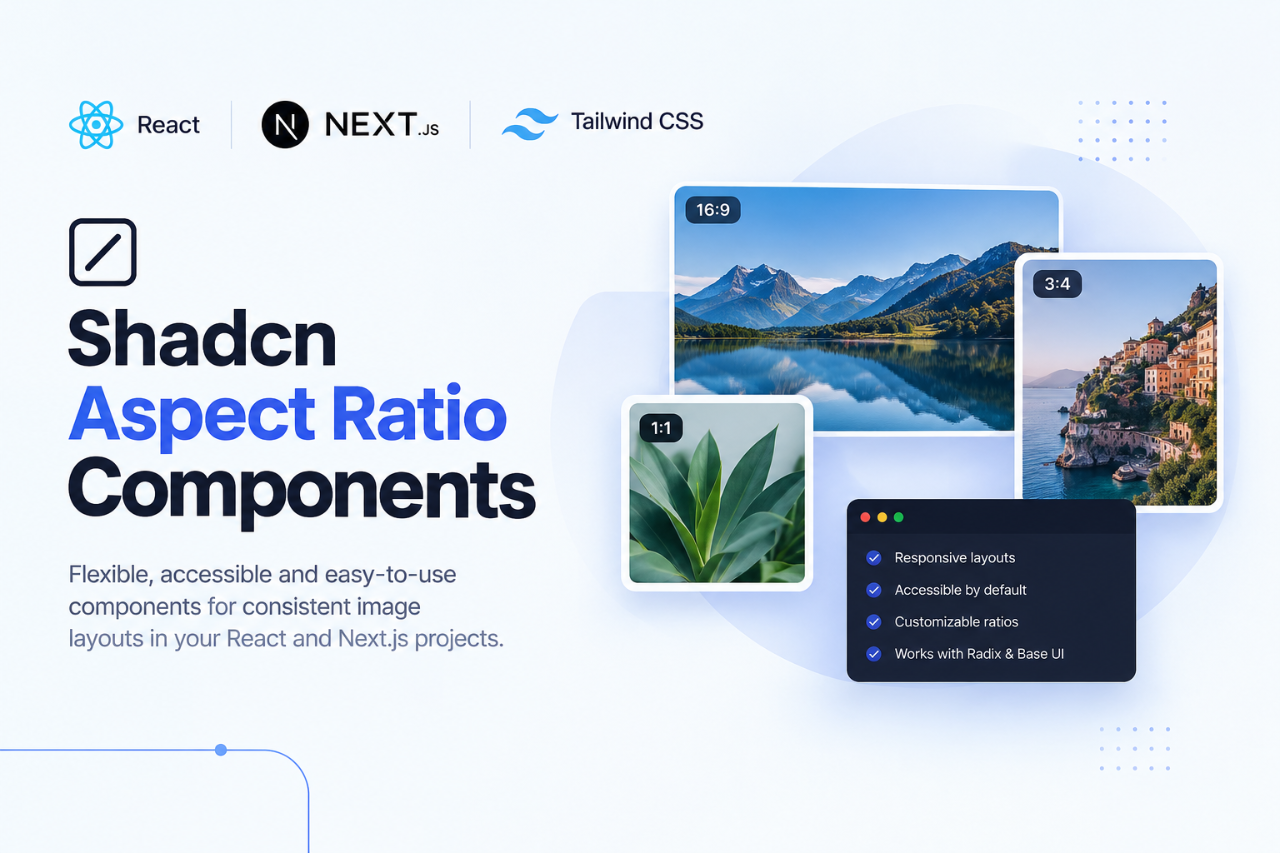
Shadcn Aspect Ratio is a UI component that keeps a container's proportions consistent as its width changes. For example, a 1:1 ratio creates a square area, while a 16:9 ratio creates a wider frame. The height follows the available width to preserve the selected relationship.
This is useful when a page displays many visual elements with different source dimensions. A product catalogue can use square containers for product photos, while a media dashboard can use widescreen containers for video previews. The container provides consistent sizing without requiring every image to have identical original dimensions.
Shadcn/ui provides an Aspect Ratio component for React-based applications, including projects built with Next.js and Tailwind CSS. The official documentation includes Base UI and Radix UI implementations. Select the implementation that matches your existing setup and review its current API before using it.
How Can Shadcn Aspect Ratio Help Developers?
Aspect ratio components help you establish consistent visual rules across an application. Instead of solving image sizing separately on each page, you can reuse a ratio-based container wherever the same type of content appears.
Here are five situations where the component can help:
Product catalogues: Keep product images aligned even when photographs come from different sources.
Content management systems: Use predictable thumbnail dimensions for articles, categories, and uploaded media.
Video platforms: Maintain a consistent frame for video previews before users open the player.
Portfolio websites: Present projects in a structured grid without uneven image heights.
Application dashboards: Keep visual cards organized when images and other content load dynamically.
Aspect ratio components also help reserve space for visual content, which can reduce layout shifts when configured correctly. However, the component alone does not guarantee a stable page. Image dimensions, loading behavior, parent sizing, and cropping rules still matter.
Tech Stack and Installation
The examples in this guide are intended for projects using shadcn/ui, React, Next.js, and Tailwind CSS. Framer Motion may be useful when an implementation includes animated transitions or interactive previews, but it is not a requirement for every aspect ratio component.
The standard shadcn/ui Aspect Ratio component has Base UI and Radix UI implementation options. Check the component's documentation and your project's configuration before selecting an implementation.
How to Install Shadcn Aspect Ratio
You can add the standard component through the shadcn CLI using your preferred package manager.
pnpm
pnpm dlx shadcn@latest add aspect-ratio
npm
npx shadcn@latest add aspect-ratio
Yarn
yarn dlx shadcn@latest add aspect-ratio
Bun
bunx --bun shadcn@latest add aspect-ratio
These commands are for the standard Aspect Ratio component. If you want a custom example from a registry, follow the installation instructions supplied with that example. The custom component may have different dependencies or include additional UI elements compared with the standard shadcn components.
After installation, review the generated files and confirm that the component uses the expected UI library. Check any additional dependencies before integrating it into a production application.
Best Shadcn Aspect Ratio Components and Examples
Different layouts need different ways to present visual content. Some require only a consistent image container, while others need captions, video indicators, or controls for switching between ratios.
The six examples below cover common requirements in content-driven applications, ecommerce interfaces, and media tools.
Default

Default provides a basic container that keeps visual content within a defined proportion. It is useful when the primary requirement is consistent sizing rather than additional controls or presentation elements. You can use it as a shared building block for images across multiple sections of an application.
Use cases:
Showing article thumbnails in blog listings.
Keeping image areas consistent in dashboard cards.
Displaying portfolio project previews.
Presenting illustrations in product feature sections.
Maintaining predictable sizing for reusable media components.
Best for: React and Next.js pages that need consistent image containers without extra presentation logic.
Square Grid

Square Grid is designed for layouts where each visual item should occupy the same square area. Using a 1:1 ratio helps keep product listings, profile collections, and image galleries organized. It also makes it easier to scan a large collection without uneven source image dimensions affecting the grid.
Use cases:
Building ecommerce product collections.
Displaying employee or team profiles.
Creating design asset libraries.
Organizing portfolio thumbnails.
Presenting image-based collections in admin interfaces.
Best for: Ecommerce catalogues, profile grids, and image libraries that need uniform square previews.
Caption Overlay

Caption Overlay places descriptive text on top of an image rather than in a separate section below it. The caption can identify an article, project, category, or featured collection. The image container maintains its proportions while the text gives users more context about the content.
Use cases:
Showing article titles over cover images.
Identifying portfolio projects.
Adding category names to image-based navigation.
Highlighting selected content on a landing page.
Presenting campaign and collection thumbnails.
Best for: Editorial interfaces and visual content cards where titles should remain connected to their images.
Video Thumbnail

Video Thumbnail keeps video previews within a predictable frame, helping a media library maintain consistent card dimensions. A 16:9 ratio is a common option for landscape video content. Additional elements, such as a play indicator or duration label, can provide useful information before the user opens the video.
Use cases:
Organizing videos in a media library.
Displaying recorded course lessons.
Creating previews for training content.
Presenting product demonstration videos.
Showing recorded meetings in an application dashboard.
Best for: Learning platforms, video libraries, and media dashboards that use landscape video previews.
Ratio Switcher

Ratio Switcher supports interfaces where the user needs to preview content at different proportions. For example, a publishing tool may need square images for one output and portrait images for another. A ratio control can change the preview area while preserving the surrounding layout.
Use cases:
Switching between square and landscape previews.
Previewing vertical media formats.
Building image cropping tools.
Comparing alternate image compositions.
Creating content publishing interfaces.
Best for: Media editing and publishing tools that need selectable image proportions.
Product Card

Product Card combines a consistent image area with the information used to present an item. Keeping product images within a predictable frame makes it easier to compare products in a grid. The surrounding card can contain details such as the product name, price, availability, or a purchase action.
Use cases:
Building ecommerce listing pages.
Organizing product cards into consistent grids.
Displaying products in inventory management dashboards.
Showing related products on a detail page.
Presenting product images alongside prices and availability.
Best for: Ecommerce storefronts and product management interfaces with repeated image-based cards.
How to Choose the Right Aspect Ratio
Start by considering the source content and how users will view it. The goal is not to use the same ratio everywhere, but to select proportions that support the layout and preserve the important parts of each image.
Aspect ratio | Common use | Main benefit |
|---|---|---|
1:1 | Product photos, avatars, image grids | Uniform square previews |
4:3 | Screenshots, editorial images, older video formats | More vertical space |
16:9 | Video thumbnails, landscape images | Widescreen presentation |
3:4 | Portrait photography, product imagery | Taller visual frame |
9:16 | Vertical videos and mobile stories | Portrait-oriented presentation |
These are common choices, not mandatory dimensions. A product photograph may need a different ratio from a video preview, even if both appear in the same application.
What Should You Check Before Using an Aspect Ratio Component?
Before adding an aspect ratio component to a production interface, check how it behaves with the actual content and surrounding layout.
Image cropping:
object-coverfills the container but can cut off parts of an image.object-containshows the full image but may leave space.Parent dimensions: Confirm that the parent element provides enough width for the ratio to work as intended.
Loading behavior: Reserve image space through the container or explicit image dimensions to help reduce layout shifts.
Accessibility: Provide useful alternative text for meaningful images and appropriate empty alternative text for decorative ones.
Viewport testing: Check narrow and wide layouts to make sure important content stays visible.
UI library compatibility: Use the Base UI or Radix UI version that matches your project and review its dependencies and API.
These checks help prevent problems that can otherwise appear when a component is reused across several pages with different content.
Frequently Asked Questions
What does Shadcn Aspect Ratio do in a React application?
Shadcn Aspect Ratio maintains a chosen relationship between a container's width and height. It helps developers keep images, video previews, product cards, and gallery items consistent as the available layout width changes.
Which CLI command installs Shadcn Aspect Ratio with pnpm, npm, Yarn, or Bun?
Use pnpm dlx shadcn@latest add aspect-ratio for pnpm, npx shadcn@latest add aspect-ratio for npm, yarn dlx shadcn@latest add aspect-ratio for Yarn, or bunx --bun shadcn@latest add aspect-ratio for Bun. These commands install the standard component; custom registry examples may use different commands.
Is Shadcn Aspect Ratio compatible with Base UI and Radix UI?
The official shadcn/ui documentation provides Base UI and Radix UI implementations. Check the current documentation for the component version you intend to use and select the implementation that fits your application's existing dependencies. You do not need to replace your UI library solely to maintain image proportions.
Conclusion
Shadcn Aspect Ratio components are useful when your application needs predictable image and media layouts. Default containers suit general content, Square Grid works for uniform collections, Caption Overlay adds context to images, and Video Thumbnail supports landscape media. Ratio Switcher and Product Card address interfaces that need selectable proportions or structured product presentation.
Choose the component based on the content and behavior your page requires. Then review its installation instructions, UI library compatibility, cropping behavior, and accessibility before using it in production. The standard shadcn ui Aspect Ratio component can be installed through the CLI using pnpm, npm, Yarn, or Bun, while custom registry components may require separate commands.
Once the sizing rules are correct, reuse them across similar layouts instead of adding separate fixed heights to individual images. This gives your React and Next.js interfaces a more consistent structure and makes image-heavy pages easier to maintain.