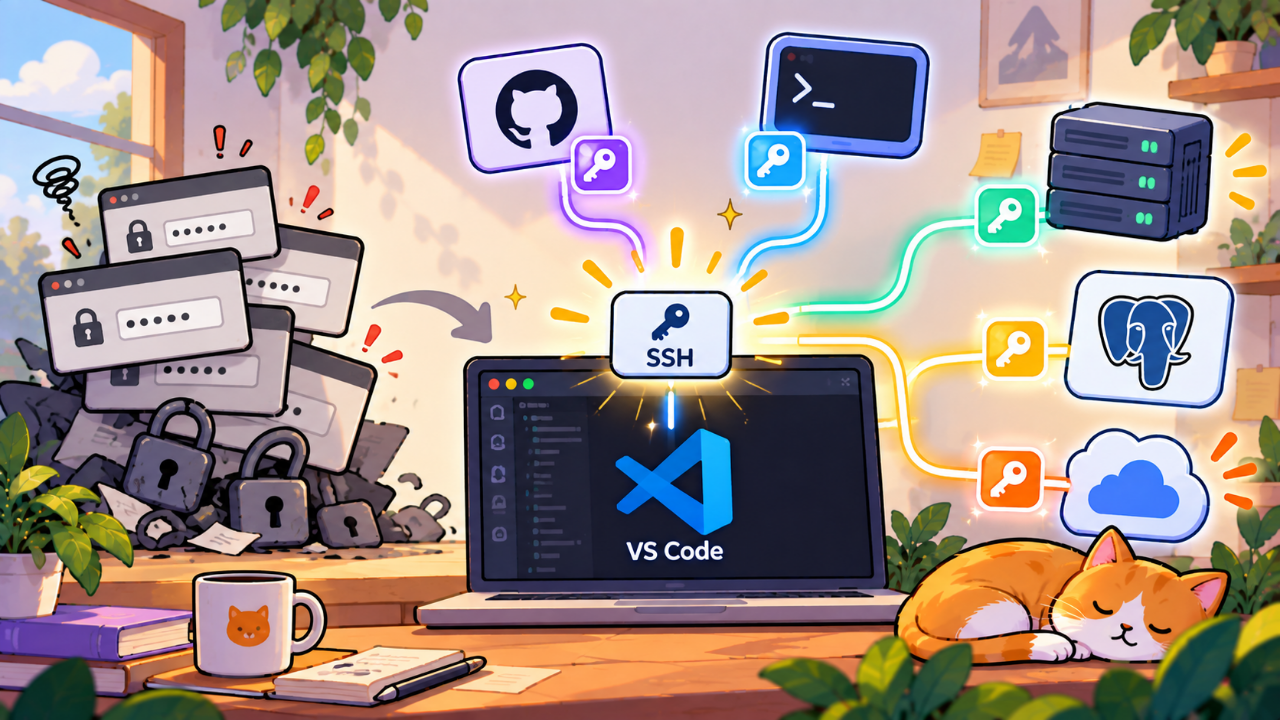
You have three SSH keys. One for GitHub. One for the Vercel project you just imported. A third for the DigitalOcean droplet running your Postgres instance. They live in ~/.ssh, a digital junk drawer of id_rsa and id_ed25519 files you’re afraid to clean up. Every morning, you open a terminal and type your passphrase. Then you do it again for a different key. Then you launch VSCode, which asks for it again.
It’s a tiny friction, a papercut. But you get a dozen of these every day. They add up. They pull you out of flow. And when you're shipping on a Tuesday night, flow is the only thing you have.
Last year, a story hit the top of Hacker News: “VSCode's SSH Agent Is Bananas (2025)”. Most of us saw the headline, scrolled the comments, and filed it away as another incremental improvement for corporate teams. We dismissed it. That was a mistake.
The feature isn’t just good. It’s a foundational shift in local dev environments for solo makers. It’s one of those rare updates that erases an entire category of yak-shaving. And as of 2026, it’s stable enough to bet your week on.
What Actually Shipped
Let’s be clear about what this is. For years, VSCode’s Remote - SSH extension let you edit code on a remote server. To do that, it had its own little SSH agent. It was useful, but siloed. It only worked for connections initiated by VSCode.
The 2025 update changed the game. VSCode can now act as the system-wide SSH agent for your entire machine.
Here’s the flow:
You start VSCode.
You add your SSH keys to the VSCode agent one time.
You enter your passphrases, which are then stored securely in your OS keychain (macOS Keychain, Windows Credential Manager, etc.).
From that moment on, as long as VSCode is running, any application on your system that uses SSH just works. Your terminal, Git commands, scp, TablePlus, database clients — all of it. No more ssh-add in your .zshrc. No more third-party keychain helpers. No more passphrase prompts.
It forwards the agent connection to all terminals, including the ones you open outside of the editor. This is the piece everyone missed. It’s not about remote development inside VSCode. It’s about turning VSCode into the central authentication hub for your local machine.
Why a Solo Founder Should Care
Your job is to ship product, not to manage credentials. Every minute spent wrestling with ssh-agent forwarding or typing a passphrase you can’t quite remember is a minute you didn’t spend fixing a bug or writing a landing page.
This feature gives you back those minutes. More importantly, it reduces cognitive load. Think about your stack. You have your code, your database, your deployment pipeline, your analytics. Each has its own context. Your local machine's authentication layer should be invisible. It should be a utility, like electricity. You flick a switch and it works.
That’s what this provides. You open your laptop, you launch VSCode (which you were going to do anyway), and your keys are ready. You can git push, ssh into your server to check logs, and connect your database GUI without a single credential prompt. It removes a whole layer of friction between you and your work.
This isn’t about saving five seconds. It’s about staying in a state of flow. It’s about making your development environment feel less like a series of cobbled-together scripts and more like a cohesive, integrated machine. This is the same principle that makes tools like Vercel or Netlify so powerful: they abstract away the boring parts. This abstracts away the boring part of local auth. It helps you get from idea to a launched product, whether that's a new SaaS or an AI agent research toolkit, with fewer distractions.
If you're serious about optimizing your workflow, this is a bigger deal than switching linters or adopting a new framework. This is about fixing the plumbing. For a deep dive into streamlining your setup, our guide on painless dev environments is a good next step.
How to Try It in a Day
This isn't a weekend project. You can do this in the next ten minutes. Let's do it right now.
Prerequisites: An up-to-date version of VSCode (anything from late 2025 onwards) and the Remote - SSH extension installed.
Step 1: Enable the Agent in Settings
Open VSCode. Press Cmd+, (or Ctrl+, on Windows) to open settings. In the search bar, type SSH Agent. You'll see an option: "Remote.SSH: Use Local Server". Check that box. This is the magic switch. It tells VSCode's SSH extension to start its agent service on your local machine, not just for remote connections.
Step 2: Add Your Keys
Restart VSCode to be safe. Now, open the Command Palette with Cmd+Shift+P (or Ctrl+Shift+P). Type SSH: Add Keys to Agent and hit enter.
It will prompt you for the path to your SSH key. The default is usually fine (e.g., ~/.ssh/id_ed25519). Select the key you use for GitHub, your servers, etc.
Step 3: Grant Keychain Access
If your key has a passphrase (and it should), VSCode will now ask for it. After you enter it, your operating system will pop up a dialog asking if you want to allow VSCode to access this key in your keychain. Click "Always Allow" or the equivalent. This is the one-time-only step. You are telling your OS to trust VSCode with this secret from now on.
Repeat for any other keys you actively use.
Step 4: Verify It Works Everywhere
This is the moment of truth. Leave VSCode open. Now, open a completely separate terminal window. Not the integrated one. iTerm2, Terminal.app, Windows Terminal, whatever you use.
Try an SSH command that normally requires your key.
# Test your connection to GitHub
ssh -T git@github.com
If it works—if you see "Hi [your-username]! You've successfully authenticated..." without a passphrase prompt—you're done. It's working. Your VSCode instance is now serving SSH credentials to your entire system.
The Catch: VSCode Is Now Your Keychain
There is no free lunch. The convenience comes with a trade-off, and it’s a big one: you are creating a hard dependency on VSCode.
If you quit VSCode, the SSH agent forwarding stops.
Your keys are still safe in the OS keychain, but the service that makes them available to your other apps is gone. If you quit your editor and then try to git push from the command line, it will fail (or ask for your passphrase).
This leads to the crucial question: are you a "VSCode is always open" developer? For many solo founders, the answer is yes. The editor is the first thing you open and the last thing you close. If that's you, this trade-off is negligible. The agent will always be running when you need it.
But if you are a poly-editor developer—if you use Neovim for quick config file edits and only fire up VSCode for heavy lifting—this will be a constant annoyance. You'll find your SSH commands failing and then remember, "Ah, I have to launch VSCode first." For you, this feature is likely not worth the hassle. Stick to the traditional `ssh-agent` or a tool like 1Password's agent.
This is a classic platform dependency choice, not unlike deciding between Fly.io vs. Render for your hosting. You're trading some flexibility for a massive gain in convenience and integration. You have to decide if the trade is worth it for your specific workflow.
What Breaks in Production?
Nothing. At least, not directly.
This is a local development environment tool. It has zero effect on your production server's code, security, or performance. Your server doesn't know or care how your local machine manages its SSH keys.
The real question is: what breaks in your workflow for *accessing* production?
The primary risk is a failure of VSCode itself. Imagine it's 3 AM. Your site is down. You need to SSH into your server to restart a process. You try to open VSCode to activate your SSH key, but the latest update has a critical bug and it won't launch. Now your primary method of authentication is unavailable right when you need it most.
This is a real, if unlikely, risk. The mitigation is simple: know the escape hatch.
The escape hatch is just the old way of doing things. If your VSCode-based agent ever fails you, open a terminal and run the classic command:
# Start the standard ssh-agent in the background
eval "$(ssh-agent -s)"

# Add your key manually
ssh-add ~/.ssh/your_prod_key
That's it. You're back to a standard, non-VSCode-dependent SSH session. You should know how to do this. Don't let this new, convenient workflow make you forget the fundamentals. Write it on a sticky note. Put it in your notes app. Just have it somewhere.
The other place this can break is in automated scripts. If you have a cron job or a shell script that performs a git pull or an scp, it will fail. Those scripts run in a non-interactive session that doesn't know about your running VSCode instance. For those cases, you still need to use dedicated deploy keys without passphrases or configure the script to use a specific key file directly.
The Verdict: Is It Worth Switching?
Yes. Unequivocally.
But with a giant asterisk: if, and only if, you are a solo developer who lives in VSCode.
If VSCode is your command center, this feature is one of the biggest quality-of-life improvements of the last few years. It simplifies your local machine, reduces friction, and keeps you in a state of flow. The "lock-in" is a feature, not a bug, because it integrates seamlessly into the workflow you already have. The risk is manageable as long as you remember the escape hatch.
Do not use this if:
You are a Vim/Emacs/Sublime Text primary user. The friction will outweigh the benefit.
You have a complex, multi-user environment with shared keys or bastion hosts.
Your workflow relies heavily on automated, non-interactive SSH scripts running from your local machine.
For the rest of us—the indie hackers, the solo founders, the night-and-weekend shippers—this is a gift. It’s one less thing to think about. It’s a clean, simple solution to a messy, annoying problem. It's one of the best tools to come out in the last few years, and you'll find more like it in our developer tools category.
Go turn it on. Add your keys. Then enjoy the silence as you work, uninterrupted, for the rest of the day. You might just ship that feature a little bit faster.