When you are planning a product launch, the written assets are often ready before the visual assets. A landing page copy draft can be approved in a day, but the hero image, the social card, and the listing visual can stall the whole plan. The bottleneck is rarely the idea; it is the gap between a written brief and the first set of images to react to.
For small teams, this gap often gets resolved by asking a designer to interpret the brief under time pressure, or by settling for a stock visual that does not match the product. A different approach is to treat the visual brief as an input and generate multiple directions quickly, then use a review step to choose and refine.
### Write a brief that forces decisions
A useful visual brief for launch planning should not be a mood board full of adjectives. It should state what the image needs to do, what must stay fixed, and what can change. For example:
- Asset: app listing hero image for a note-taking tool - Ratio: 16:9, final use on a marketplace page - Required product geometry: keep the app window and keyboard unchanged - Typography: include the product name in the upper third - Clean space: leave the lower left clear for a badge or callout - Direction to test: two versions, one warm lighting and one cool neutral
This brief is deliberately specific. It separates fixed brand requirements from testable choices. When the first generated images come back, the team is not asking "Do we like it?" in general. They are asking whether the fixed elements survived and which lighting direction supports the launch message.
### Generate directions instead of one polished visual
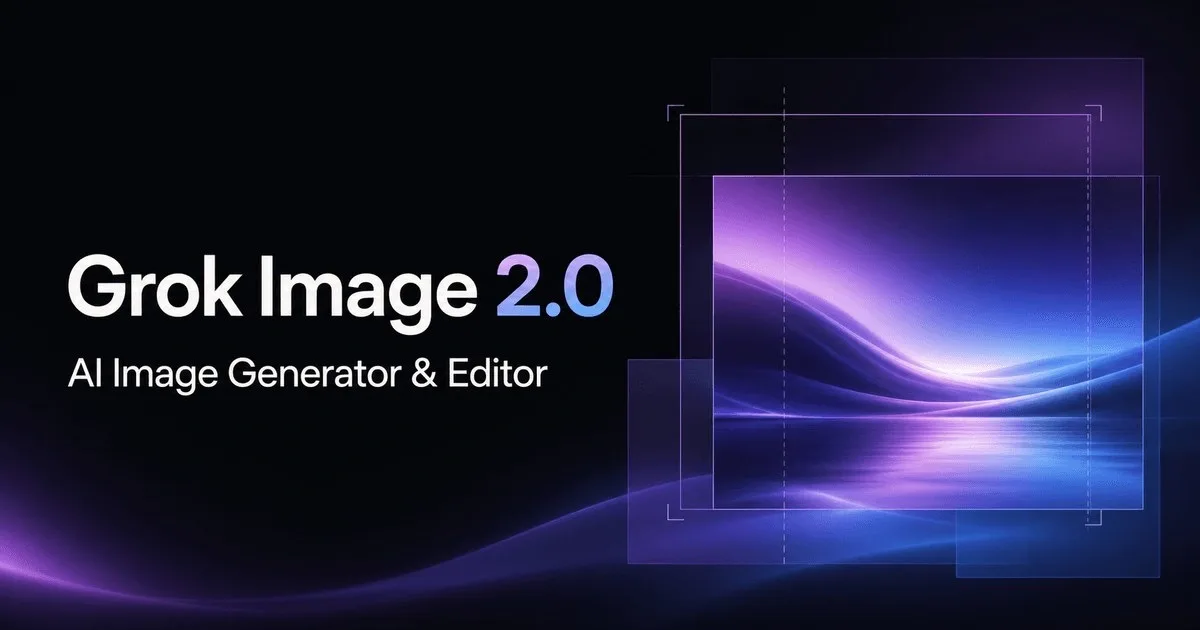
A launch usually benefits from seeing multiple directions before committing. But asking a designer to produce three fully polished options is expensive. The product page for Grok Image 2.0 describes a workflow of moving from a visual brief to multiple reviewable image directions using text prompts and reference images. According to the product page, the tool renders type and hierarchy deliberately, and its editing behavior keeps successful details stable across changes.
In practice, you can start with the brief above and generate a first direction. If the layout works but the lighting feels wrong, you can adjust that single variable with a natural-language instruction rather than rewriting the whole prompt. If the product geometry needs to stay identical, you can use a reference image and ask for a version with clean space for copy. The point is not to use the AI output as final art, but to create reviewable directions quickly enough that the team can compare them.
### Review step: check fixed elements before judging aesthetics
The review step for launch visuals should separate two questions. First, did the direction meet the brief? Check the product geometry, the typography placement, the ratio, and the reserved clean space. Second, does it support the launch message? This is where taste and strategy come in.
According to the product page, Grok Image 2.0 defends product geometry and branding during edits. That is useful for the first question, but you should still verify the result manually. A generated image can look polished and still place a headline in the wrong position or crop the product window. A quick checklist keeps the review focused: fixed elements intact, copy space present, ratio correct, no unintended artifacts.
### Use what you learned for the next asset
After you choose a direction, you can reuse the same brief and reference image for related assets: a social card, a blog header, a listing screenshot. Because the brief captures the fixed decisions, you do not have to re-explain the brand requirements each time. If the product page description is accurate, Grok Image 2.0 can preserve successful details while you change only the ratio or the clean space for a different layout. This makes launch asset production less of a one-off scramble and more of a repeatable process.
If you are planning a launch and want to move from a written brief to reviewable image directions without a full design sprint, the workflow above is a practical starting point. You can find more details on the described capabilities at the product page for Grok Image 2.0. Start with one asset, write a specific brief, and review against fixed elements before you judge the overall look.